
Installing a WordPress security fix can briefly expose your site, because the updater stages files in a folder anyone can reach. Attackers are now targeting that short window. So, block web access to the upgrade folder before you update, then patch straight away.
Key Takeaways
- The flaw sits in the WordPress core updater itself.
- The risky moment is the update window.
- Blocking the upgrade folder first closes the gap.
- Sites on very old versions get no fix at all.
What Is the WordPress Updater Flaw?
CVE-2026-119977: a race condition in the WordPress core updater. It affects versions 4.7 to 7.1.3 and is fixed in 7.1.4.
During a core update, WordPress unpacks a temporary copy of itself. That copy sits in the wp-content/upgrade folder for a short time. Unfortunately, the web server can usually reach it, installer included.
How Attackers Use the Update Window
An attacker watches for that temporary copy. Then, they set it up with their own database and log in. From there, they can run code with your web server’s permissions. In other words, a routine update becomes an open door.
Normal update: WordPress stages its files, swaps them in and deletes the copy within moments.
Attacked update: someone reaches the staged installer first and takes control before the clean-up.
Why the WordPress Security Fix Carries Risk
Here is the twist. The fix arrives through the same updater. So, on a vulnerable site, installing the patch opens the window one last time. Moreover, attackers are watching closely. Wordfence has blocked over 240,000 requests targeting this flaw.
Note: A firewall that runs as a normal plugin cannot see these requests. The staged copy never loads your plugins.
How to Update WordPress Safely
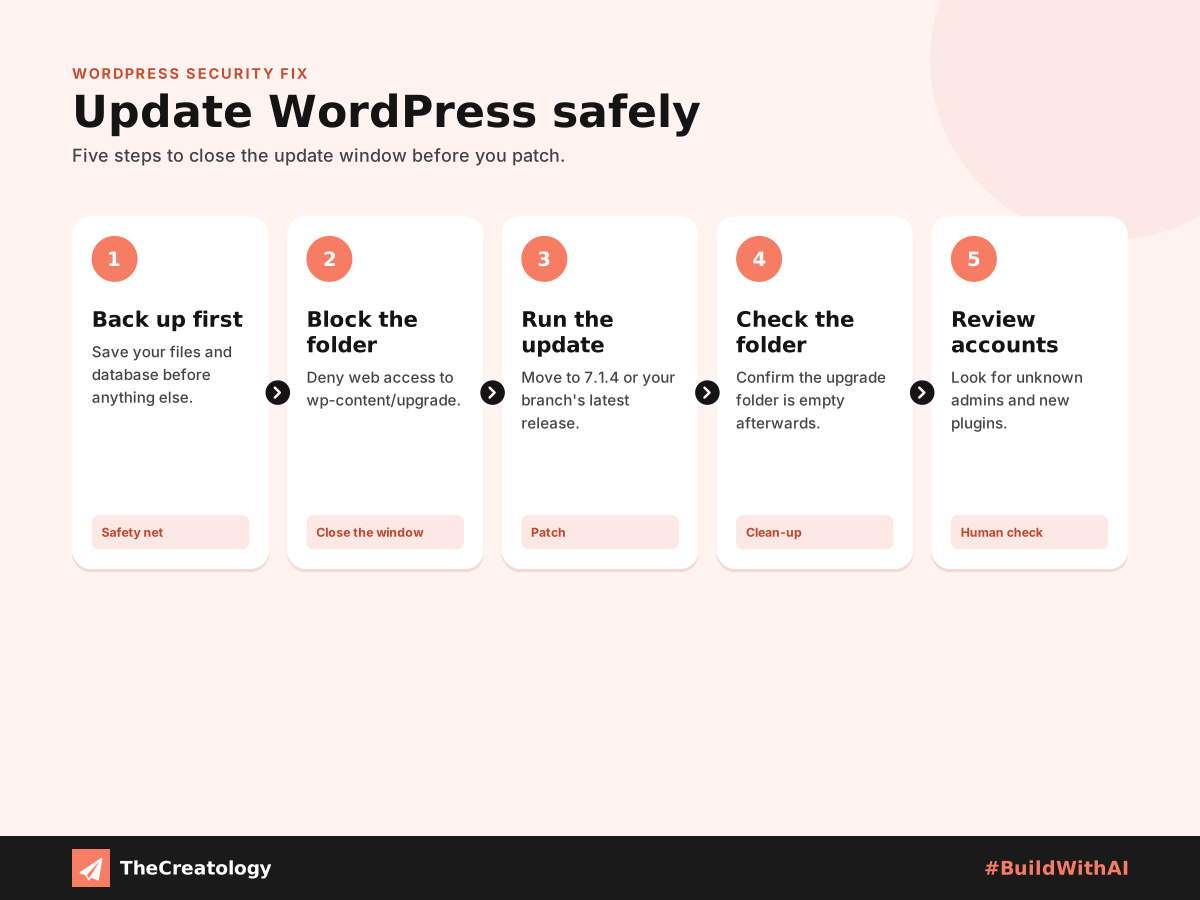
Follow this order to close the gap before you patch.
- Take a full backup of your files and database.
- Block web access to
wp-content/upgrade. On Apache, add an .htaccess file there withRequire all denied. On Nginx, add a deny rule for that path. - Run the core update to 7.1.4, or the latest release of your branch.
- Check that the upgrade folder is empty afterwards.
- Review new admin accounts and recently added plugins.
Old versions: WordPress 4.6 and earlier get no fix. Upgrade to a supported version instead.
Who Should Apply the Fix?
Every site on WordPress 4.7 to 7.1.3 needs the WordPress security fix. However, who applies it matters. A maintenance team blocks the folder, updates during quiet hours and checks the logs afterwards. Meanwhile, a busy owner might simply click Update and skip the first step. So, if you are unsure, ask your developer to handle it today.
Intelligent Tools Found It in Hours
The bug hid in the updater for around 18 years. Yet the researcher who found it used an intelligent tool as a research partner. Together, they built a working attack chain in about four hours. Clearly, attackers can do the same. Therefore, fast and careful maintenance matters more than ever.
WordPress Updater Flaw: Common Questions
Is my site affected?
If it runs WordPress 4.7 to 7.1.3, yes, until you update.
Do automatic updates protect me?
They install the fix, but the update window still opens. So, block the upgrade folder first wherever you can. Learn more about how WordPress auto updates work.
How do I know if I was attacked?
Look for unknown admin users, unfamiliar plugins and odd files in the upgrade folder.
Should I wait before installing the WordPress security fix?
No. Waiting leaves the old flaw open. Instead, block the folder first, then update straight away.
In short, block the door before you fix the lock.
Want your WordPress updates handled safely? Talk to TheCreatology about website maintenance and #BuildWithAI.


Comments
Felt something? How about posting a comment below…