
Safari Notify Me lets shoppers watch a product page and get an alert when the price drops or stock returns. A sound WooCommerce Notify Me setup comes down to four things: show stock status, keep sold-out products published, link variations clearly and clear your cache whenever price or stock changes.
Why WooCommerce Stores Should Care
Notify Me is part of Safari on iPhone and Mac, so shoppers need no extra app. Each watch is a likely return visit, and on the iPhone Duo shoppers can even compare two stores side by side. However, WooCommerce stores often rely on caching and plugins. If you configure these poorly, they can hide real changes from Safari.
Because you control the whole setup, you also control how reliable your product pages are. In short, a few settings decide whether a shopper’s alert arrives on time.
WooCommerce Notify Me Setup: The Gist
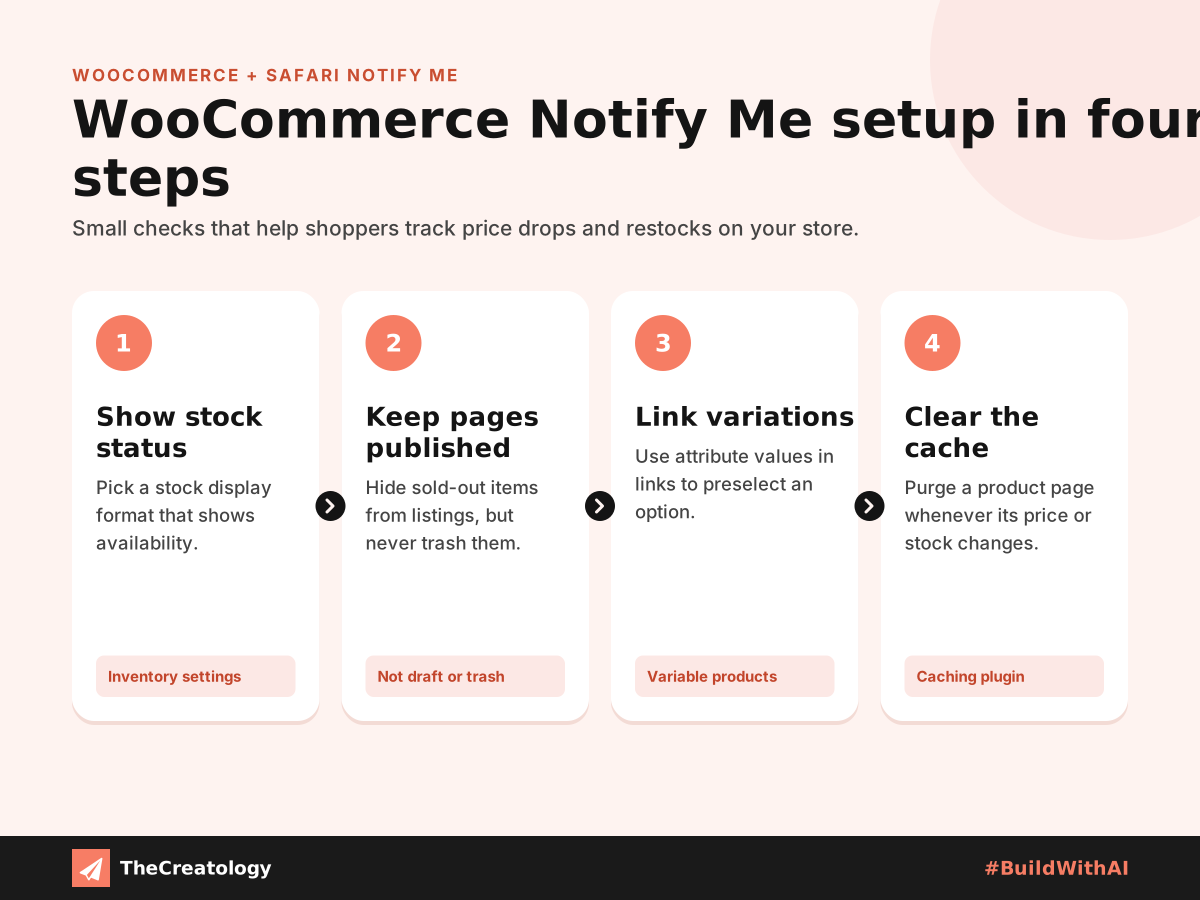
Show stock status on product pages
In the WooCommerce inventory settings, first choose a stock display format that shows availability on the product page. As a result, clear labels such as “In stock” and “Out of stock” help both shoppers and machines read the page.
Keep sold-out products published
Never move a sold-out product to draft or trash. Instead, WooCommerce can hide out-of-stock items from shop listings while the product page itself stays live. That keeps every existing watch working, and it also protects any search ranking the page has earned.
Link variations clearly
Variable products often change size or colour without changing the URL. However, WooCommerce can preselect a variation through attribute values in the link. Use these links in emails and adverts, so shoppers land on, and watch, the exact option.
Clear the cache on every change
Page caching speeds up WooCommerce, but a stale cache may still show an old price. Therefore, make sure your caching plugin clears a product page whenever its price or stock changes. Most popular caching plugins offer this option, so check that you have turned it on.
Check product structured data
WooCommerce adds product structured data with price and availability by default. Still, some themes and SEO plugins change or duplicate it, so test a few product pages with Google’s Rich Results Test.
A Quick PageSpeed Tip
PageSpeed tip: Keep page caching on, but exclude the cart, checkout and account pages. Cached product pages load quickly and help your Largest Contentful Paint score, while dynamic pages stay accurate.
Frequently Asked Questions
Do I need a plugin for Notify Me?
No. Shoppers set it up in Safari themselves. Your store simply needs pages that stay live and show current details.
Can caching stop Notify Me alerts?
It can, if the cached page shows an old price or stock status. Clearing the cache on each change solves this.
Should I hide out-of-stock products?
Hiding them from listings is fine. Just keep the product pages themselves live.
The Takeaway
A WooCommerce Notify Me setup is about accuracy and stability. Show stock clearly, keep pages live and make sure the cache never hides a change. For a wider review, start with our practical UX audit for business websites. At TheCreatology, we build WooCommerce stores that stay fast without losing a single sale to stale data.



Comments
Felt something? How about posting a comment below…